Create, Dare, Be Passionate!


Prepare your files in DTF format
Technical guide
Prepare your files for DTF printing
A successful DTF print starts with a well-prepared file. This guide explains all the rules to follow to achieve crisp, vibrant, and long-lasting transfers—whether you're working in Photoshop, Illustrator, or CorelDraw.
File format:
Transparent background
, 300 dpi,
CMYK mode
, Font vectorization
Essential rules
The 5 golden rules for your DTF files
Before sending your file, check these 5 points. A non-compliant file will suspend your order until we receive a corrected file.
01
The file format
Accepted: .ai, .psd, .pdf, .tiff
Rejected: .png, .jpeg, .cdr
02
The transparent background
Delete the background layers. Never flatten the image — the background will become part of the pattern.
03
The resolution
Work at a 300 dpi . Resampling a 72 dpi image will not improve it.
04
CMYK mode
Always work in CMYK. A converted RGB file will produce muted colors.
05
Vectorize fonts
Convert all your text to curves. Without vectorization, the file will be declared non-compliant.
Important: Customer files are destroyed 15 days after printing. Always keep an original copy with your layers and editable text.
Dimensions
Available formats and technical margins
Our transfers are printed on 60cm wide paper. A 2cm technical margin on the left and right is mandatory on all rectangular formats.
21 x 28 cm
A4 format
28 x 42 cm
A3 format
42 x 56 cm
A2 size
56 x 100 cm
Large format
56 x 200 cm
Extra large format
10 x 10 cm
Heart-shaped
5 x 5 cm
Label format
Mix-and-match tip: Combine several designs on a single sheet to reduce costs. Make the most of the available space within the strict limits of the ordered format. Use our online sheet builder to easily create your mix.
Step-by-step method
Prepare your DTF file according to your software
Whether you use Photoshop, Illustrator or CorelDraw, here is the complete procedure for each software.
Colorimetry
CMYK vs. RGB Mode: Why It Changes Everything
The choice of color mode is the number one source of unpleasant surprises in DTF printing.
CMYK — For printing
Subtractive printing mode (Cyan, Magenta, Yellow, Black). Your DTF files must be created directly in CMYK to guarantee accurate color reproduction.
RGB — For displays only
Display mode by adding light. Automatic RGB to CMYK conversion inevitably results in muted colors and unpredictable color variations.
Free printed color chart available.Over 2,000 colors with their exact CMYK values, printed on our machines. Contact us to receive it and choose your colors with complete confidence.
Recommended CMYK values per color
Intense blackC:30 M:30 Y:30 K:100
Pure redC:0 M:100 Y:100 N:0
Bright blueC:100 M:50 Y:0 K:0
GreenC:85 M:0 Y:100 N:0
OrangeC:0 M:50 Y:100 N:0
Simulated goldC:10 M:25 J:100 N:25
Flesh toneC:0 M:15 Y:23 K:0
BrownC:50 M:70 Y:100 K:60
Calibrate your screen.Your screen operates in RGB. Without calibration (using a Spyder X type probe), the colors perceived may be very different once printed.
What we manage for you
The white undercoat: you don't have to do anything
The white ink deposited under your design is automatically generated by our team during the compliance check.
Automatic contraction of 2 pixels so that the underlayer remains invisible on dark surfaces.
It supports the colours and improves the adhesion of the DTF powder which acts as glue.
What not to do: Do not add white to your file — a double underlayer would distort the final rendering.
Frequently Asked Questions
FAQ — Preparing DTF files
Answers to the most frequently asked questions from our customers before sending their files.
What file format is accepted for DTF printing? +
Accepted formats are .ai (Illustrator), .psd (Photoshop), .pdf and .tiff. .png, .jpeg and .cdr formats are rejected because they do not allow for the preservation of transparency or the necessary vector structure.
Why does the background of my DTF file need to be transparent? +
The white underlayer is automatically generated over opaque areas. If your background isn't transparent, it will be printed with the design and become bonded to the transfer—impossible to correct. That's why you should never flatten the image.
What resolution should be used for a DTF file? +
300 dpi at actual print size. Resampling a 72 dpi image to 300 dpi does not improve its quality — it only increases the file size without any visual benefit.
Why is it mandatory to work in CMYK for DTF? +
Direct-to-print (DTF) is a four-color process (CMYK). An RGB file will be automatically converted, but this conversion results in muted colors and unpredictable color variations. Working directly in CMYK guarantees complete control over the final output.
How to vectorize fonts for DTF? +
Illustrator: Ctrl+A then Type > Outline (Ctrl+Shift+O). CorelDraw: Object > Convert to Curves (Ctrl+Q). Always save an original version with editable text before outlining.
Should I include the white underlayer in my file? +
No. Créadhésif automatically generates it with a 2-pixel contraction so it's invisible on dark backgrounds. Do not add any white to your file.
What DTF print formats are available? +
A4 (21x28 cm), A3 (28x42 cm), A2 (42x56 cm), 56x100 cm, 56x200 cm, as well as special formats: 10x10 cm heart and 5x5 cm label. A 2 cm technical margin on the left and right is mandatory on all rectangular formats.
What CMYK value is needed for a deep black in DTF printing? +
100% black alone gives a result close to anthracite gray. For a dense black: C: 30% M: 30% Y: 30% K: 100%. This technique strengthens the solid color without the risk of over-inking.
Place an order
Is your file ready? Choose your print option.
Whether it's classic textile transfer or printing on objects, we have the solution tailored to your project.
Any doubts about your file?
Our team checks each file for compliance before printing.
Contact us before placing your order; we're here to help.
What's on
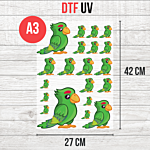
DTF UV Transfer Sheet - A3 Size - 27 x 42 cm
9,50 € 7,92 € From 6,50 €
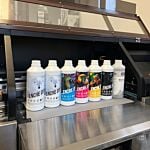
DTF Transfer Ink - 2nd Generation - White - 1L
49,00 € 40,83 €

In-person training (half-day)
0,00 € 0,00 €

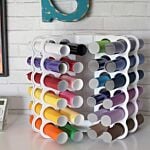
New! Storage tower for Flex or Vinyl - 36 slots
59,99 € 49,99 €