

May 2, 2018
How to cut Flex using the Silhouette Cameo?
Flex or Flock is the preferred consumable for most Silhouette Cameo users. Very practical and easy to use, you can personalize all types of polyester, cotton, or polycotton blend fabrics. A wide selection of colors and effects is available on our website www.creadhesif.com in the "Flex/Flock" section.
To proceed with the cutting, you will need:
- A sheet or roll of flex or flock
- A silhouette cutting machine
- An item to decorate, such as a t-shirt or a pillowcase for example
- A heat press
STEP 1 - Cut
First, choose or create your visual. To begin, we advise you to start with simple visuals that are easy to understand for the weeding stage.
- Select mirror mode: once your creation is loaded, click the Graphic button, then click the "Replicate" icon located at the bottom of the toolbar.
- Finally, select the "Left Mirror" or "Right Mirror" mode.
- You now have a mirror image of your design. You can delete the original drawing to avoid accidentally cutting out a non-mirror image.
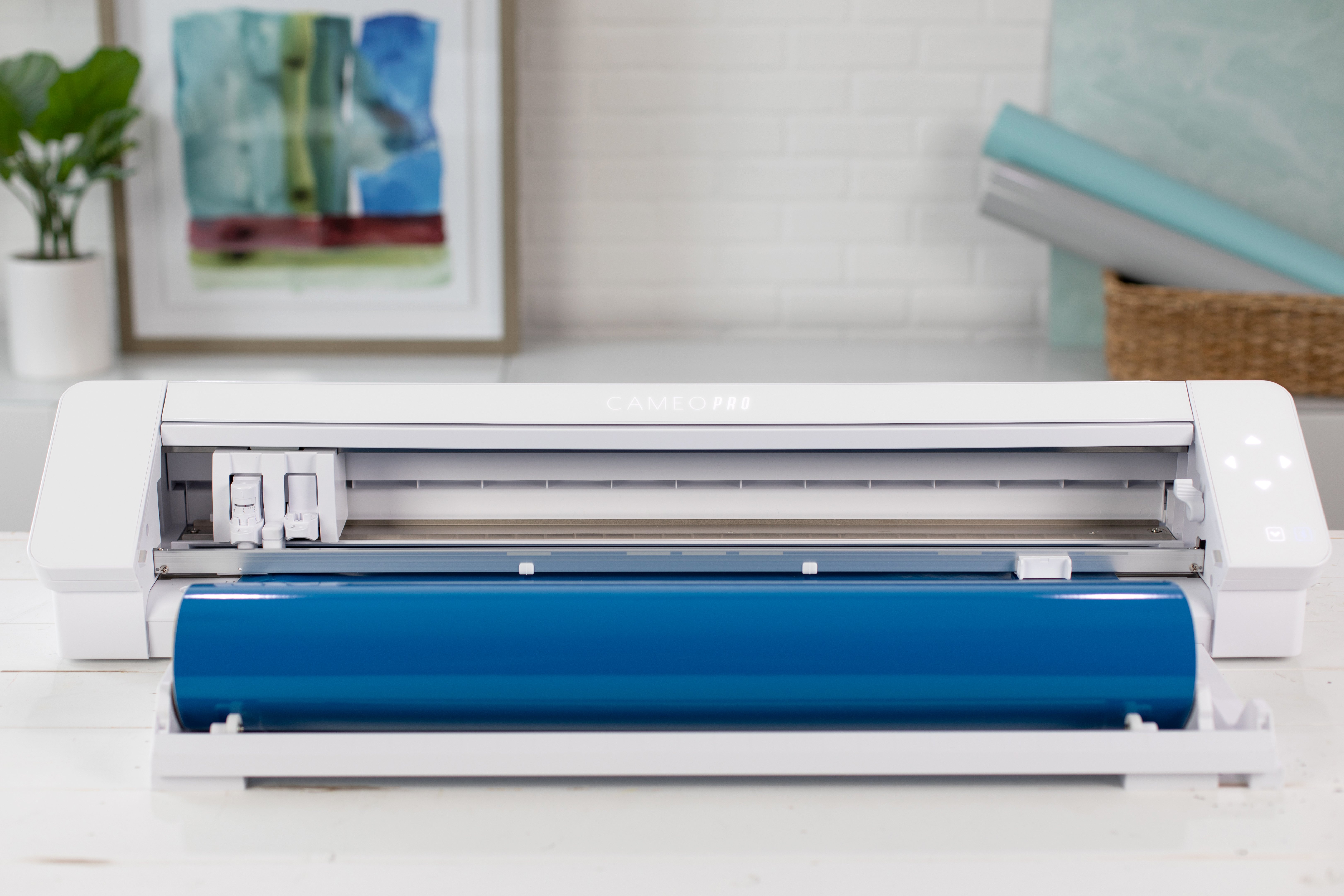
- Now, load your heat transfer vinyl into the Silhouette. You can load it directly or onto a cutting mat. If you load it directly, be sure to adjust the roll width so that the vinyl or flock fits perfectly.
- Select "Load Media" on the Silhouette screen. The plastic support should be facing down. Press Enter to load the material.
- If you're using a small piece of heat transfer vinyl or flock, such as a 30cm x 50cm sheet, you can adhere it to a cutting mat to secure it. Place the vinyl on the cutting mat with the plastic backing facing down and select "Load Cutting Mat." Select "Enter" on the screen to load the mat.
- Click the "Cutting Settings" icon (located in the top toolbar) and then select "Heat Transfer Vinyl" from the menu. Make sure you choose the correct setting for your material. If you are using smooth vinyl, select "Smooth". Select "Flocked" for flex or flock vinyl.
- Adjust the blade depth to the specified setting and press "Cut". When the cutting process is complete, unload the mat or support.
STEP 2 - Transfer
You have just cut some heat transfer vinyl using your Silhouette Cameo.
- Remove the excess flex material from the plastic backing. The Silhouette hook can help you remove/weed small pieces of flex material that you don't want transferred to your T-shirt.
- Once you have completed this step, place your cutout onto your base (T-shirt).
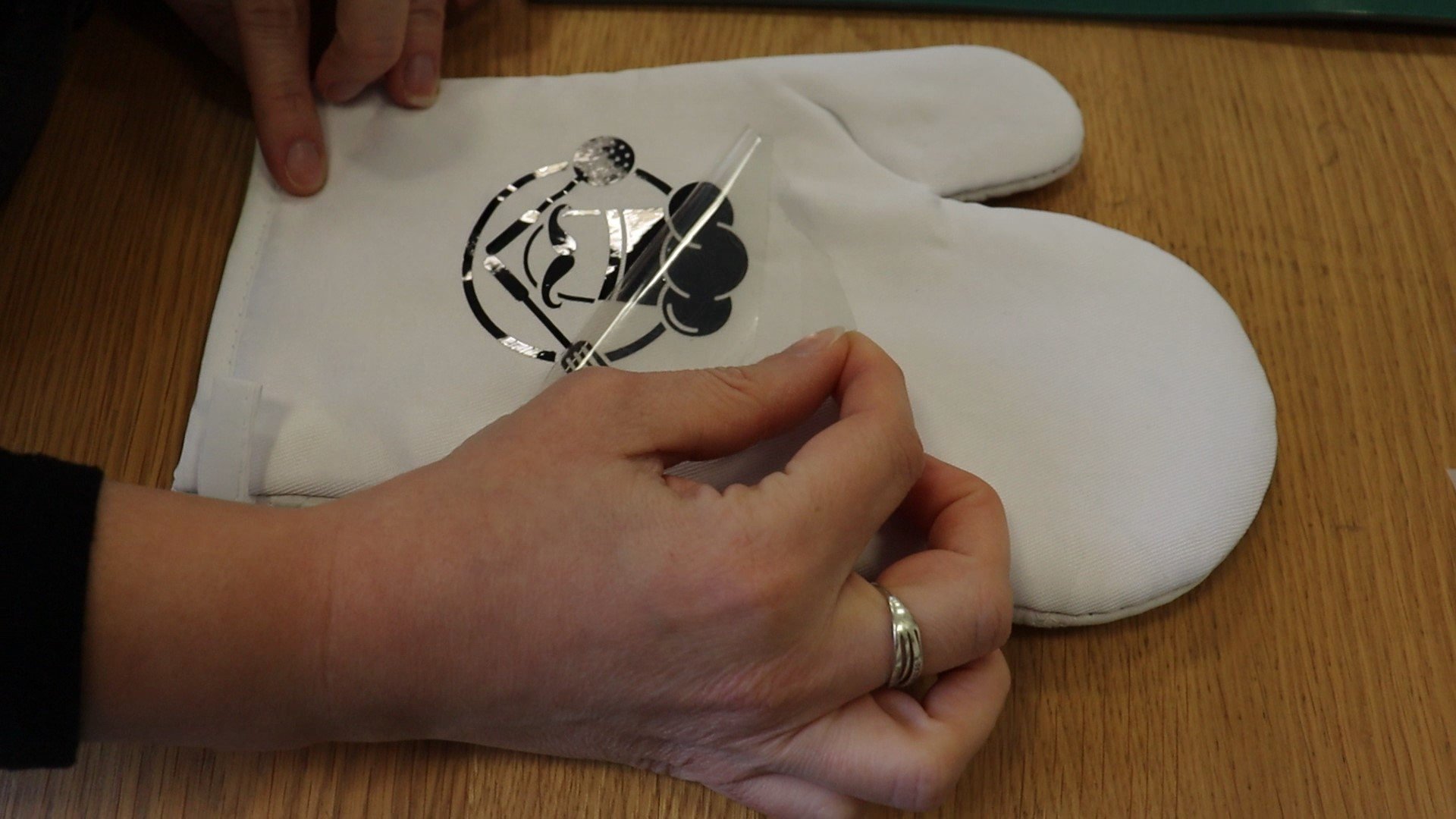
- Turn on your heat press, set the temperature, time, and pressure. Once it reaches the correct temperature, place your die-cut on your support and press. Then simply remove the liner once it has cooled.
Admire your work!


